How to Block Explicit Images in Maps on iPhone and iPad
Apple Maps and Google Maps both display photos uploaded by businesses, including nude photos posted by strip clubs. Gertrude blocks those images inside Apple Maps, and Google Maps can be deleted.
- Platforms
- iOSiPadOS
 Gertrude Blocker
TL;DR: both the built-in Apple Maps app and Google Maps will show any image that a business owner or a customer has uploaded, and plenty of strip clubs post nude photos. No Screen Time setting stops this. Gertrude blocks those images inside Apple Maps, but Google Maps isn't supported yet, so we recommend deleting it.
Why the map apps aren't safe
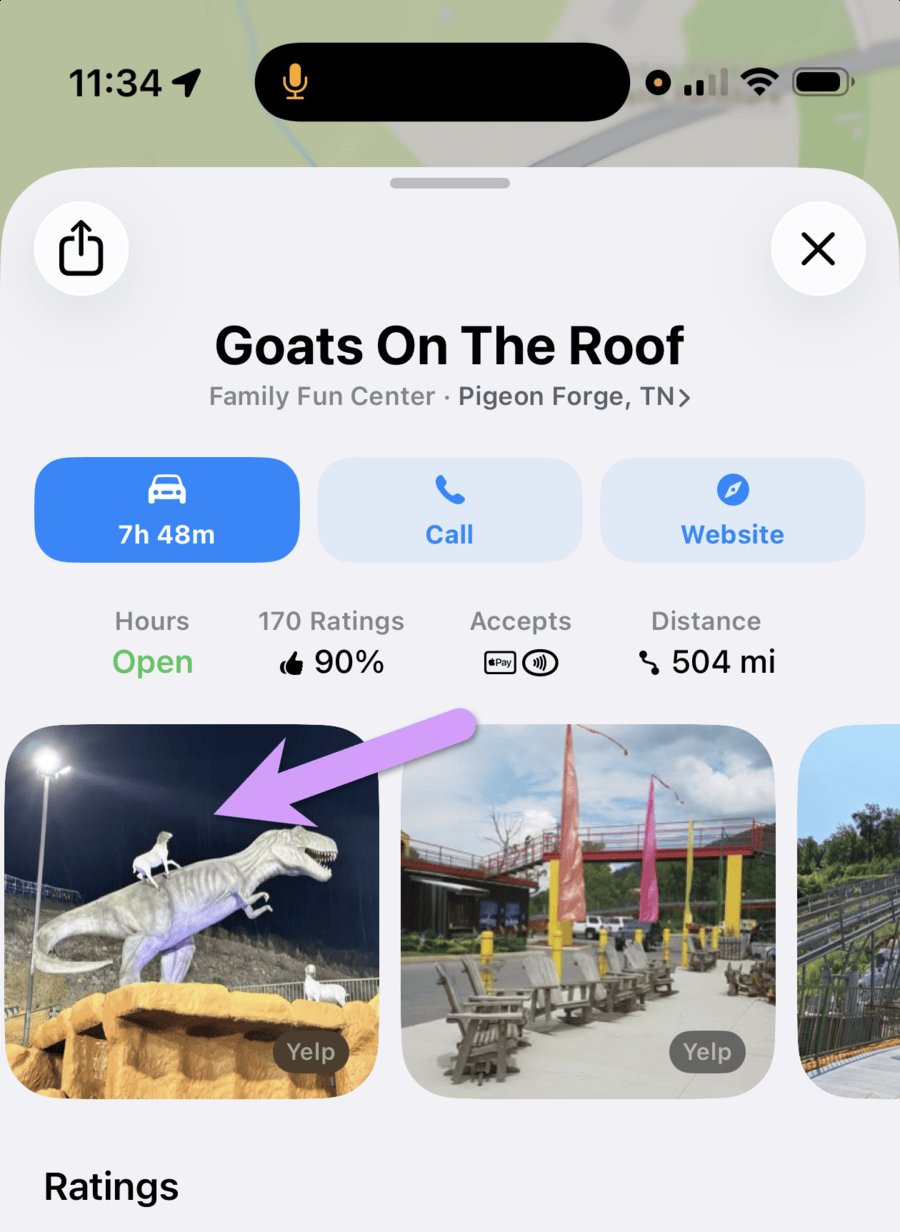
Every business listing in both apps has a photo section, and a good portion of what's in it was uploaded by the public. Nobody is reviewing those photos with a child in mind, so the listing for a strip club or an adult bookstore contains about what you'd expect. Your child doesn't have to go looking for it, either. The photos are one tap away from an ordinary map search.
Sadly, this loophole has become well-known enough that there are locations where users deliberately upload pornographic images. Bark wrote about one: a fake Google Maps place called "Milk Island" that fills back up with explicit photos and video every time Google clears it out.
Furthermore, "Street View" mode in both apps also can occasionally show inappropriate content.
Screen Time has no restriction that covers this. Nor are there settings provided by Apple or Google for parents to forbid access to these features. For a few years we recommended that both apps be deleted, and recommended using Waze instead. Thankfully now, with our own free iOS app for iPhone and iPad, we can completely block the images and street view within Apple Maps.
We have not yet done the same with Google Maps, but are actively working on it.
Apple Maps
Gertrude Blocker is a free app (iOS 17 and up) that blocks content inside other apps, including all of the images from Apple Maps business listings, and Street View. Install it on the device you're protecting and Apple Maps is taken care of. For detailed setup instructions, see here.
The block group is called Apple Maps images, and it's turned on by default when you run through setup.
How to delete a map app
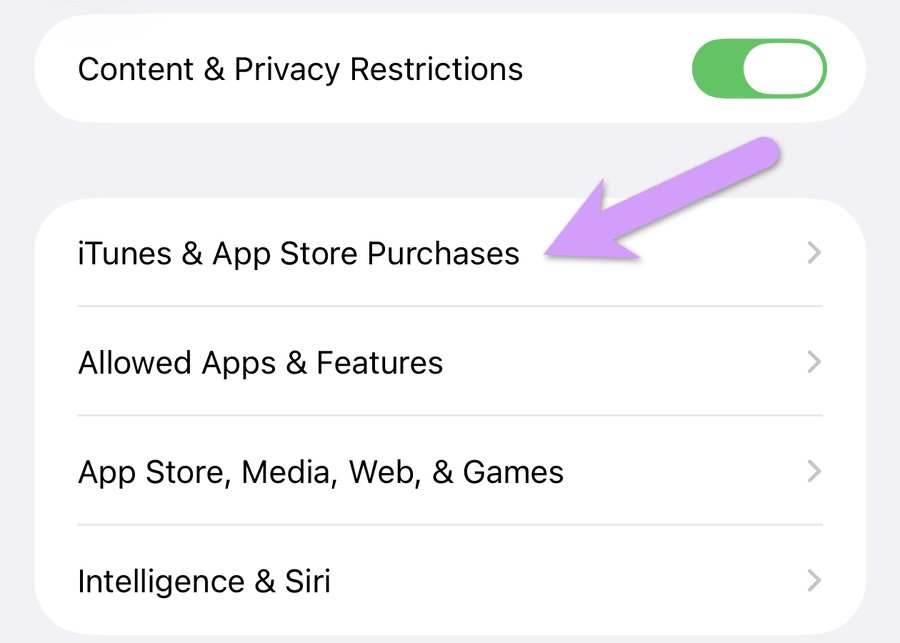
Step 1. Temporarily allow deleting apps by going to "Settings > Screen Time > Content & Privacy Restrictions > iTunes & App Store Purchases":
Then tap Deleting Apps and set it to Allow:
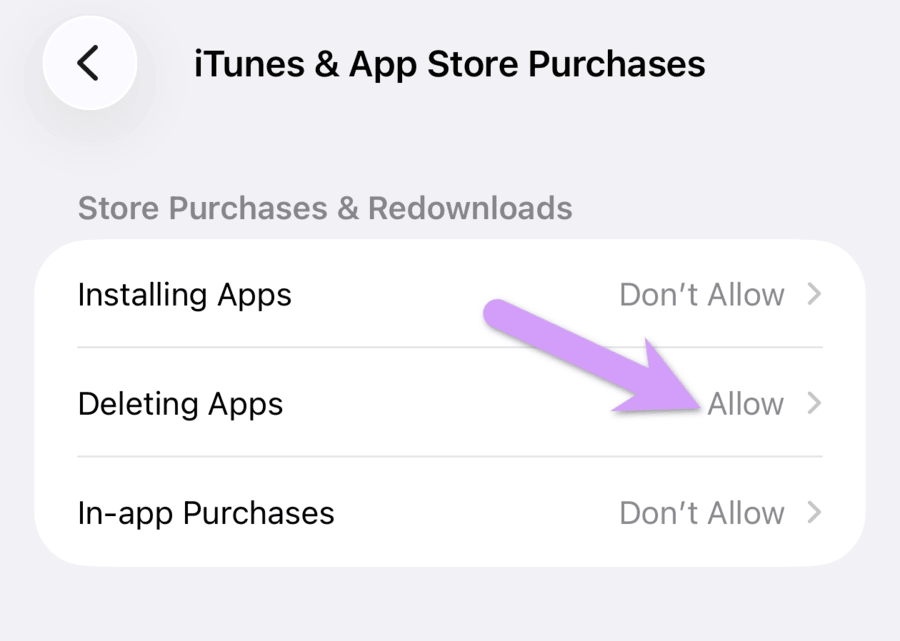
You may find that deleting apps is already allowed. If so, leave it as it is, but we do recommend revoking that privilege once you're done.
Step 2. Delete the app.
Press and hold the app icon on the home screen and choose to delete it.
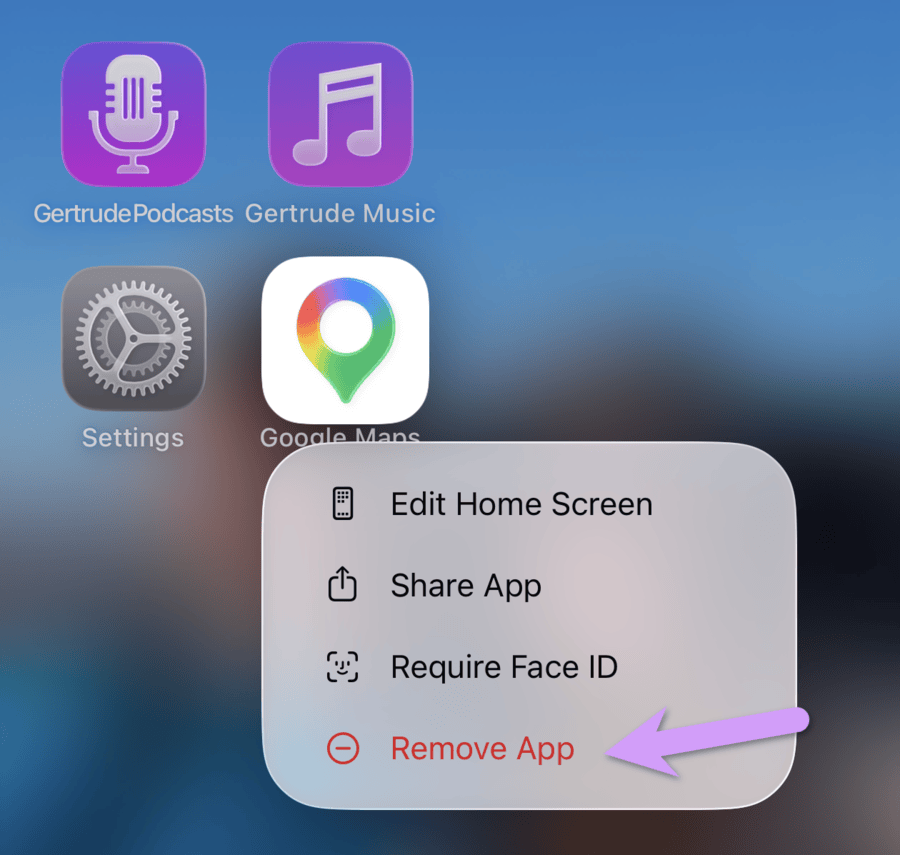
Step 3. Turn deleting apps back off.
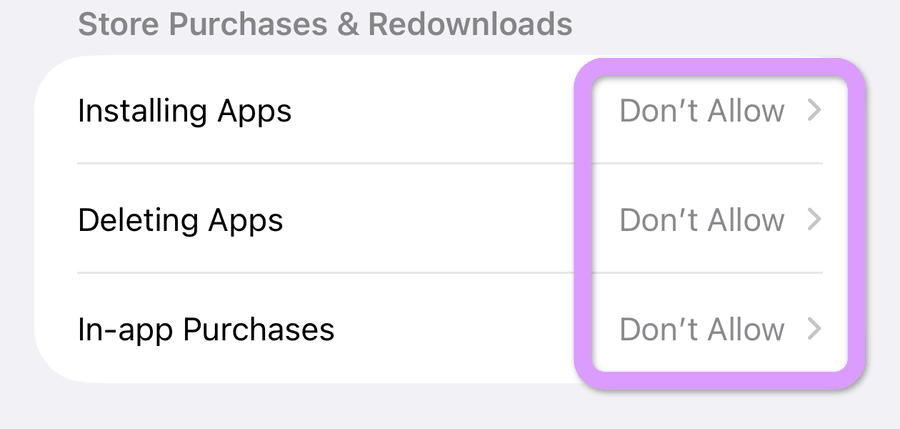
Go back to "Settings > Screen Time > Content & Privacy Restrictions > iTunes & App Store Purchases" and set Deleting Apps back to Don't Allow:
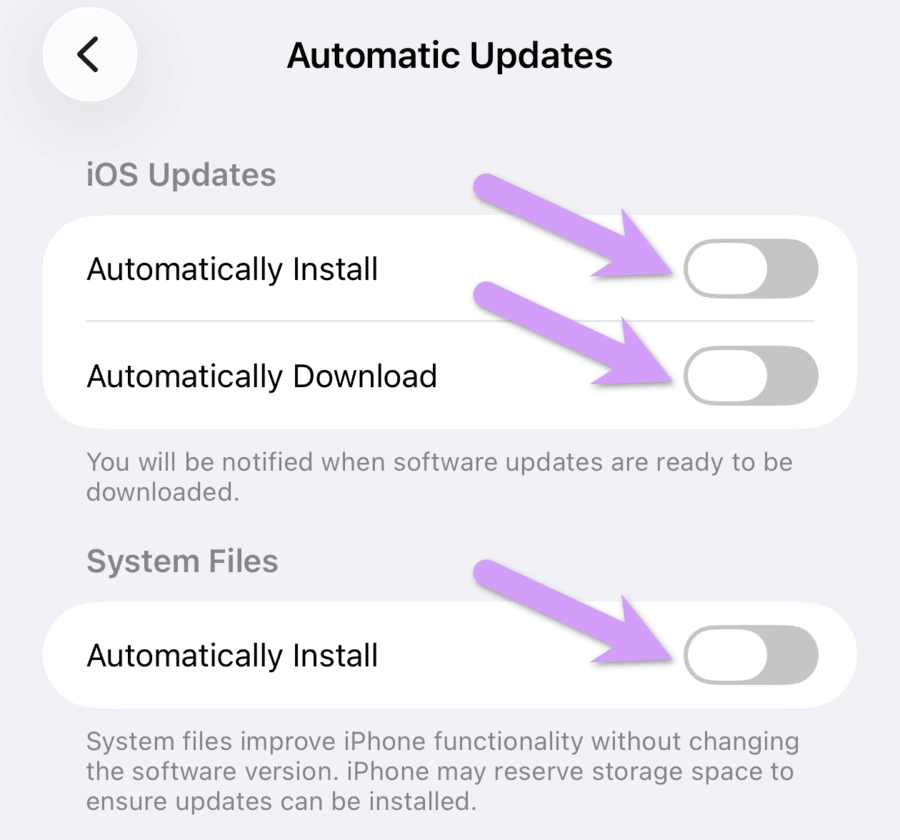
Step 4. Disable automatic software updates. (Apple Maps only)
Every time iOS updates, which can happen on its own overnight while the phone is charging, the Apple Maps app may come back. We aren't 100% sure how often it does. It may only be the large yearly versions that come out in the fall, or it may be more often, but it definitely has happened, at least in the iOS 17/18 era.
Go to the Settings app on your child's phone, then navigate to "General > Software Update > Automatic Updates", and disable all three options shown below: