Gertrude
All iPhone & iPad help

How to Block Look Up Web Results on iPhone and iPad

Older Screen Time instructions for preventing Look Up in reading and notes apps from displaying web results.

Platforms
iOSiPadOS

Most apps that deal with text (like ebook readers, Bible apps, Notes, and many more) allow the user to highlight a search term and "Look Up".

five things you forgot locking down your kids iPhone: highlight a word and tap 'Look Up'
Most apps let you highlight a word, then tap 'Look Up'

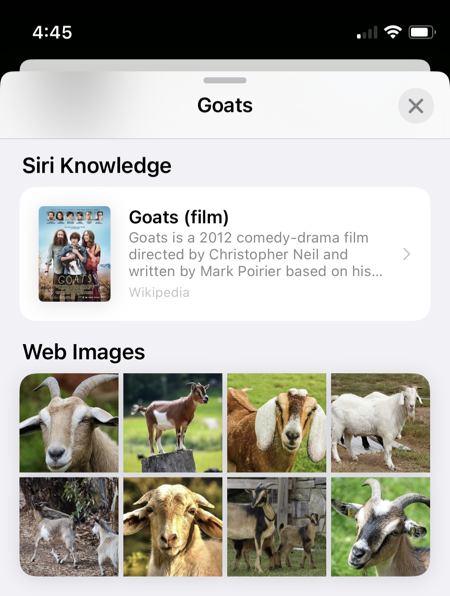
Which brings up this:

five things you forgot locking down your kids iPhone: Look Up on iOS can access and display to your child images from the web
An example of images pulled from the web in response to a 'Look Up'
Show me how to fix it

Step 1. Temporarily allow the use of Siri by going to: Settings > Screen Time > Content & Privacy Restrictions > Allowed Apps. (We need Siri enabled to get to the settings shown below.)
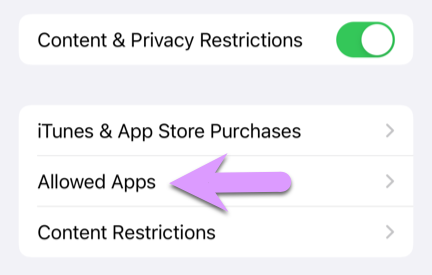
five things you forgot locking down your kids iPhone: Screen Time -> Content & Privacy Restrictions > Allowed Apps
Go to 'Allowed Apps'

Tap to temporarily enable Siri & Dictation.
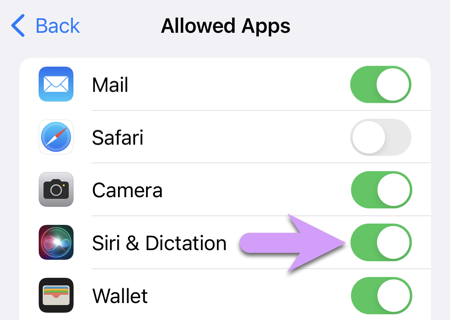
five things you forgot locking down your kids iPhone: temporarily enable Siri to fix the other settings
Temporarily enable Siri

Step 2. Go back to the main settings screen, where you should now be able to see an option for Siri & Search
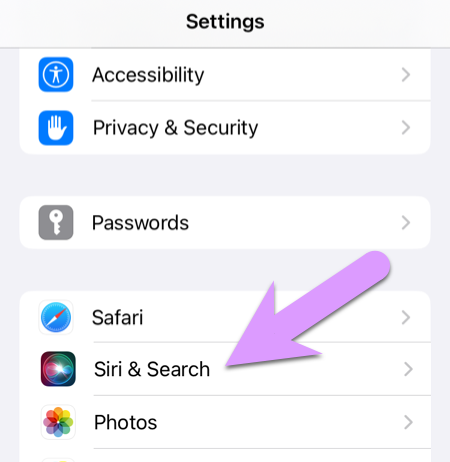
five things you forgot locking down your kids iPhone: now you can find 'Siri & Search' under the main Settings screen
Now you can go back to 'Settings > Siri & Search'

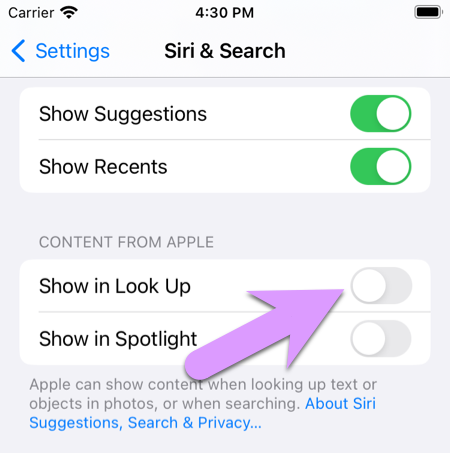
Click to disable "Show in Look Up":

five things you forgot locking down your kids iPhone: disable 'Show in Look Up' to prevent showing your child images and content from the internet
DISABLE 'Show in Look Up'

Step 3. Finally, now that Siri can no longer provide results to "Look Up", you need to reverse step 1 by disabling Siri & Dictation. Go to Settings > Screen Time > Content & Privacy Restrictions, and disallow Siri & Dictation.
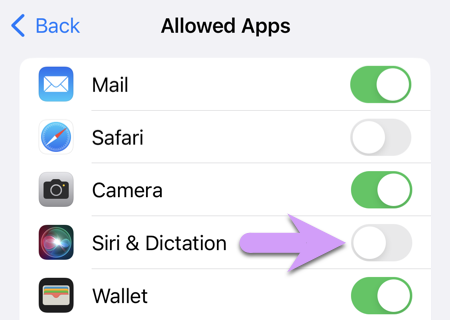
five things you forgot locking down your kids iPhone: re-disable Siri in Screen Time after fixing the other settings
Disable Siri again (same location as step 1)