How to Block Siri Internet Access on iPhone and iPad
Older Screen Time instructions for preventing Siri from bypassing restrictions to display internet content.
- Platforms
- iOSiPadOS
 Gertrude Blocker
A frequent mistake parents make is to leave Siri fully or partially enabled. While Siri can provide help for many harmless tasks, it can also bypass other restrictions to access and display almost any content on the internet. To test if your child's device is vulnerable, ask Siri to show you pictures of something.
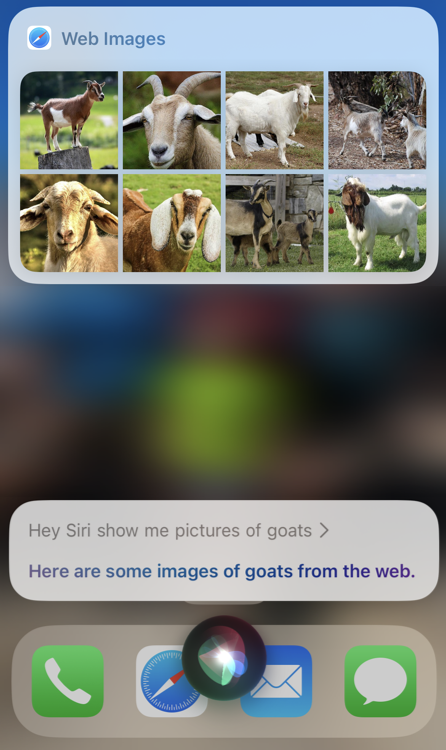
Unfortunately, simply disabling Siri from the Screen Time settings is not sufficient to fix this. Follow the steps below for instructions.
Show me how to fix it
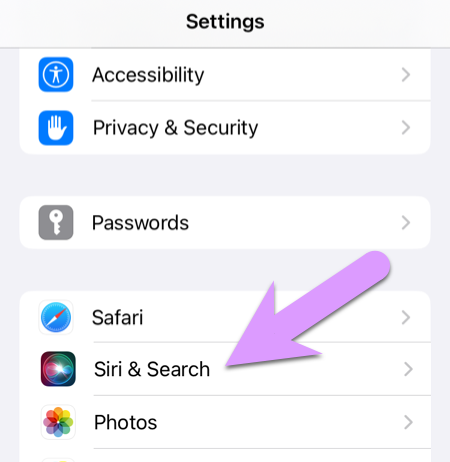
Step 1. Before we disable Siri, we need to adjust some settings. Go to Settings > Siri & Search:
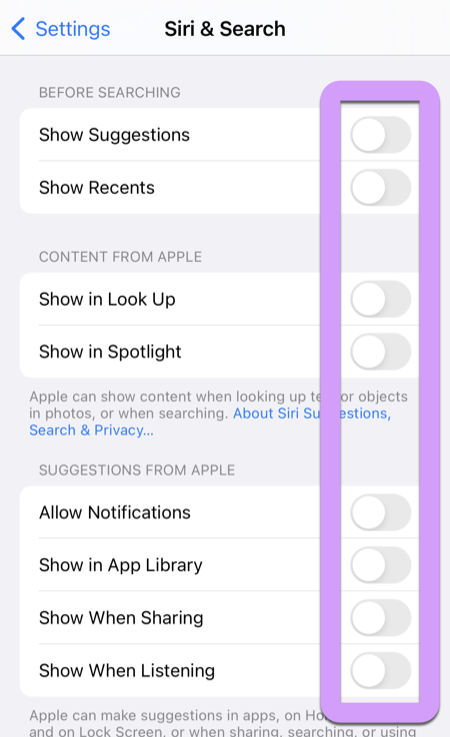
Then disable all of the options shown below. Doing so prevents Siri from providing internet images and content when searching (Spotlight) or looking up definitions (Look Up).
Step 2. Disable app/Siri integrations. On the same settings screen from Step 1, scroll down a bit further to find individual app settings for Siri, shown below:
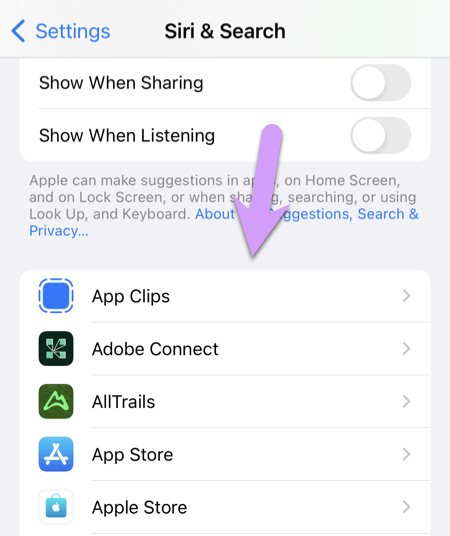
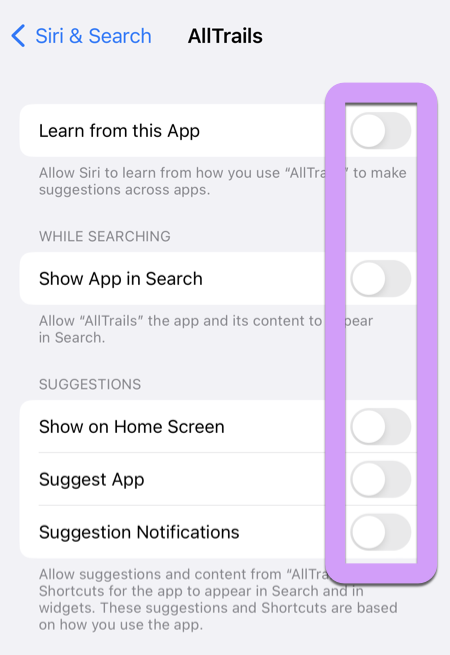
Tap on each app one at a time, and completely disable Siri from accessing/integrating with the app:
Step 3. Disable Siri in Screen Time.
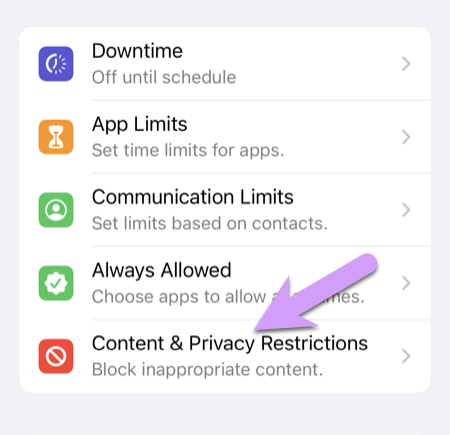
Go to the main Settings app, and then navigate to "Screen Time > Content & Privacy Restrictions"
Then to Allowed Apps:
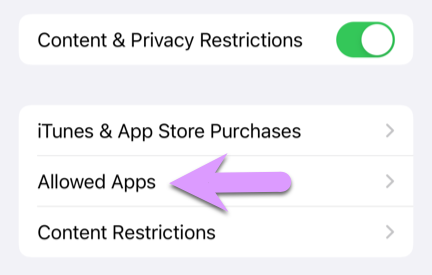
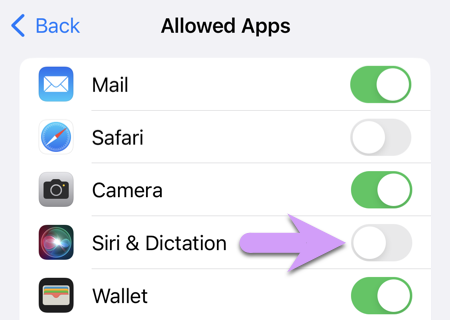
Then tap to disable Siri & Dictation: