How to Block Web Content in iPhone and iPad Search
Older Screen Time instructions for preventing device search from displaying images and other internet content.
- Platforms
- iOSiPadOS
 Gertrude Blocker
To test if your child's phone is vulnerable to this commonly missed item, pull down from the middle of the home screen to access the iPhone's built-in search prompt.
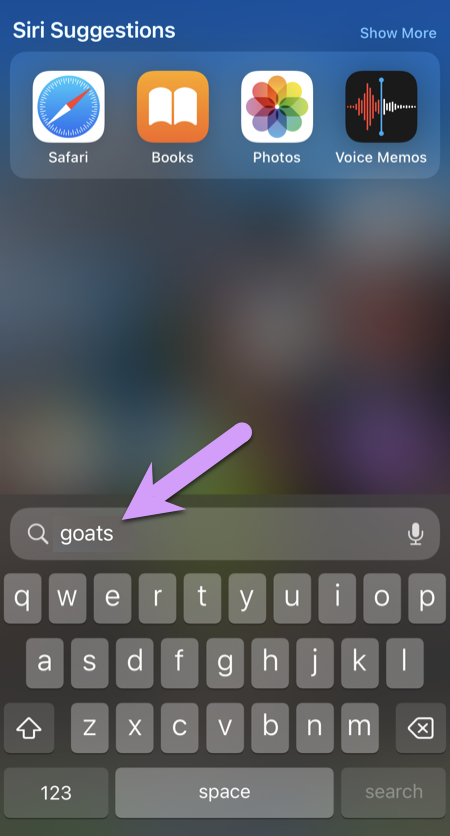
After pressing the search button, Siri is activated behind the scenes to search the internet and return results, including images. Again, imagine a less innocent search than goats:

Show me how to fix it
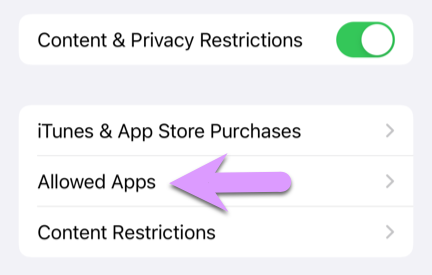
Step 1. Temporarily allow the use of Siri by going to: Settings > Screen Time > Content & Privacy Restrictions > Allowed Apps.
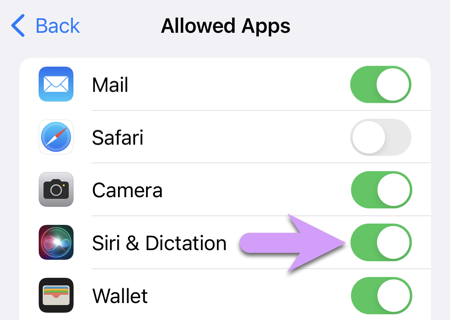
Then, temporarily allow Siri & Dictation (you'll disable it again once we get the Spotlight searching features disabled).
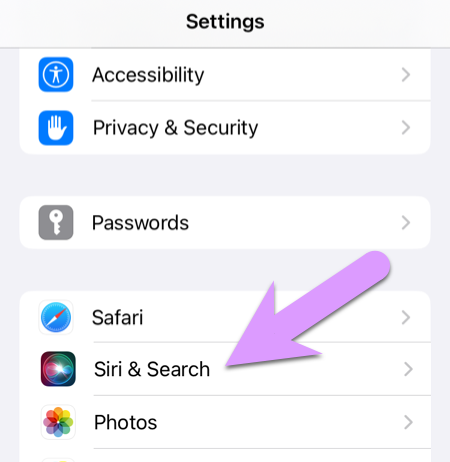
Step 2. Go back to the main settings screen, where you should now be able to see an option for Siri & Search
Click to disable "Show in Spotlight":
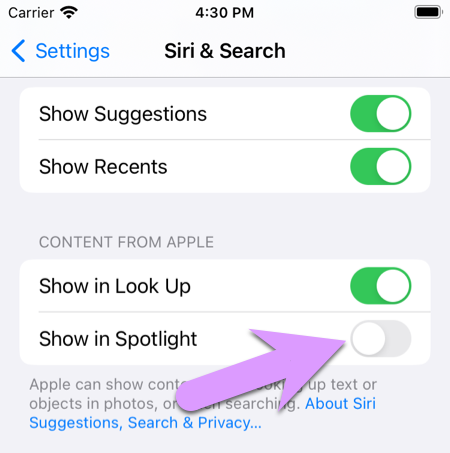
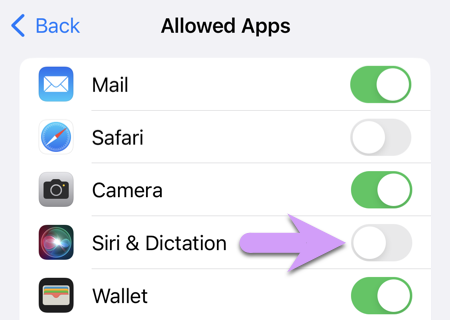
Step 3. Finally, now that Siri can no longer provide results to Spotlight (the name of the built-in iOS search feature), you need to reverse step 1 by disabling Siri & Dictation. Go to Settings > Screen Time > Content & Privacy Restrictions, and disallow Siri & Dictation.