
How to Diagnose Blocked Network Requests on a Mac
Use Gertrude’s Blocked Requests window to isolate the network requests preventing a website or app from working.
- Platform
- macOS
 Gertrude for Mac
A website or app can remain broken even after you unblock its main address. Many services also load code, images, or data from other domains, and Gertrude blocks those requests until you allow them too. Read why this happens if you want a quick explanation.
The Blocked Requests window helps you isolate the additional domains the website or app needs.
Step 1: Close unrelated apps and browser tabs
Close every app you do not need for this test. If you are troubleshooting a website, also close unrelated browser tabs.
Mac apps make many network requests in the background. Closing what you can makes the important requests much easier to find.
Step 2: Open Blocked Requests
Click the Gertrude icon in the Mac menu bar, then click Blocked requests.
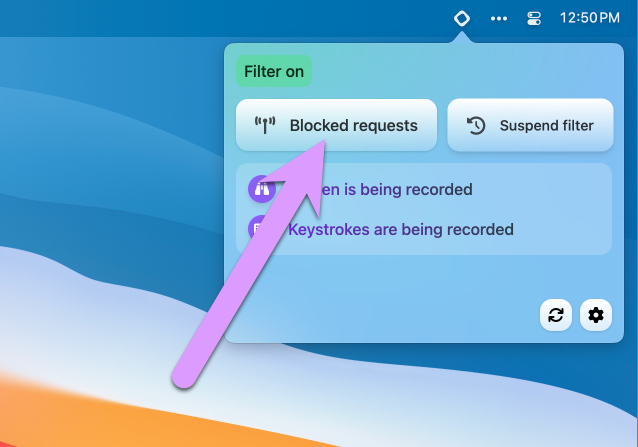
Only requests blocked after you open this window appear, so keep it open while you reproduce the problem.
Step 3: Filter and clear the list
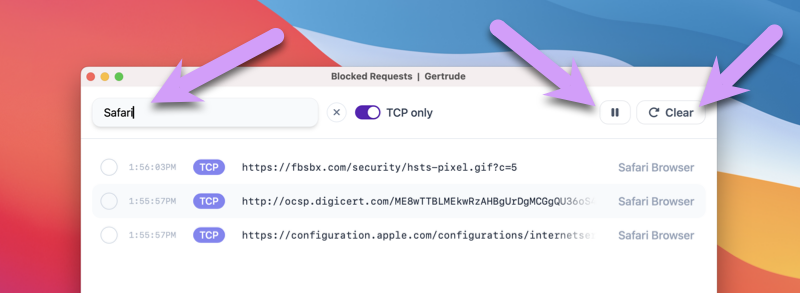
Enter the browser or app name in the Filter field. For example, enter Safari if the problem is in Safari. Then click Clear to remove older requests.
Step 4: Reproduce the problem and pause
Return to the website or app and repeat the action that is not working. For a broken website, reload the page.
As soon as the new blocked requests appear, click Pause. You should now have a short, focused list of requests made at the moment the problem occurred.
Send an unlock request
Select the requests that appear to be necessary, add an explanation, and click Send unlock request. A parent can review the request from the Gertrude parent website and decide which addresses to allow.
You may need to repeat the filter, clear, reproduce, and pause process more than once. Request only addresses you recognize as necessary for the website or app.
Still stuck?
Read the complete guide to unblocking websites and apps, or contact us and tell us which website or app you are trying to use.