
How to Run Gertrude’s Mac Health Check
Use Gertrude’s built-in health check to find and fix common problems with its Mac filter, monitoring permissions, account, and settings.
- Platform
- macOS
 Gertrude for Mac
Gertrude for Mac has a built-in health check that looks for common problems and, when possible, gives you a button to fix them.
Step 1: Open the Gertrude menu
Click the Gertrude icon in the menu bar at the top of the Mac screen. Then click the gear icon in the lower-right corner of the menu.
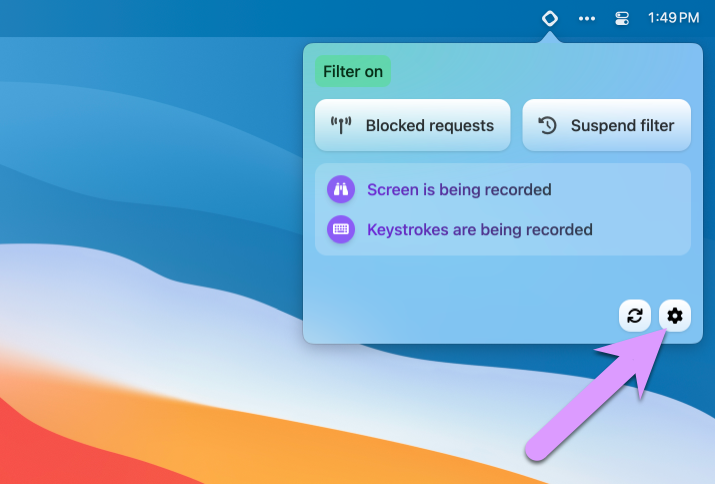
Approve the Mac’s administrator authentication when prompted.
Step 2: Review the health check
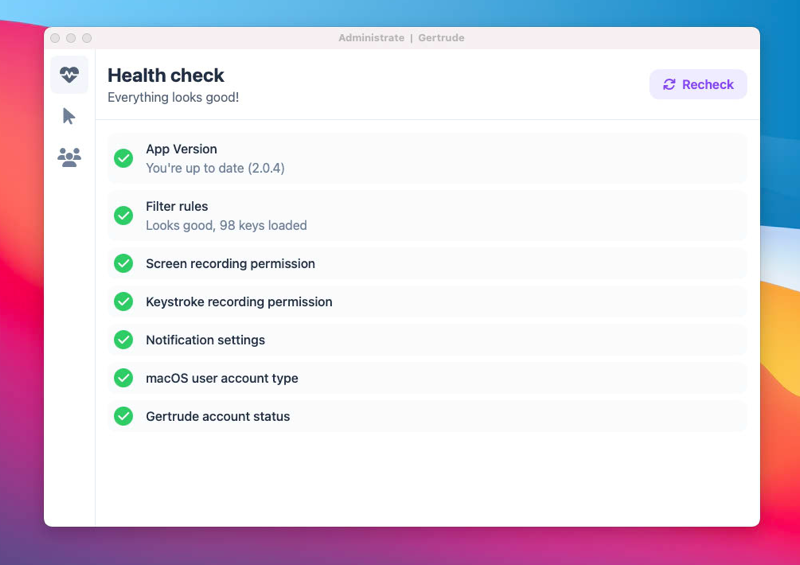
The health check starts automatically. A healthy setup shows green check marks. Depending on how your family uses Gertrude, it may check:
- The installed Gertrude app and filter versions
- Filter status, communication, and loaded rules
- Screen recording, keystroke recording, and Full Disk Access permissions
- Notification settings
- The current macOS user account type
- Your Gertrude account status
- Conflicts with Apple’s Screen Time web filter
Step 3: Fix any reported problems
If a check reports a warning or failure, read its explanation and use the action button beside it. The available button depends on the problem—for example, Gertrude may offer to fix a permission, enable or repair the filter, refresh its rules, or open the relevant System Settings screen.
Step 4: Run the check again
After making a change, click Recheck. If Gertrude tells you to restart the Mac, restart it before checking again.
Still having trouble?
Contact us and tell us which health check is failing. We’ll help you get it working.