
Fix a Screen Time Conflict with Gertrude’s Mac Filter
If Apple's Screen Time web content filtering is enabled on your child's Mac alongside Gertrude, the Gertrude filter can stop working. Here's how to fix it.
- Platform
- macOS
 Gertrude for Mac
I built the Gertrude Mac app originally to protect my own kids, and I've always been pretty intense—maybe even a little nutty—about safety and security. After five years and many families using Gertrude, the only failure mode I know of that can actually cause kids to be exposed to parts of the internet their parents don't want them to see is a conflict with Screen Time's web filtering on the Mac.
What's happening
Apple's Screen Time includes its own web content filter. When both Screen Time's web filter and Gertrude are running on the same Mac, Screen Time seems to take priority. This means Gertrude's filter gets bypassed—websites that should be blocked slip right through, even though Gertrude appears to be running normally. We've observed that sometimes this filter failure only affects non-Safari browsers, like Chrome or Firefox, while Safari seems to remain blocked (by either Gertrude or Screen Time).
How to fix it
You just need to disable Screen Time's Content & Privacy on the Mac and restart.
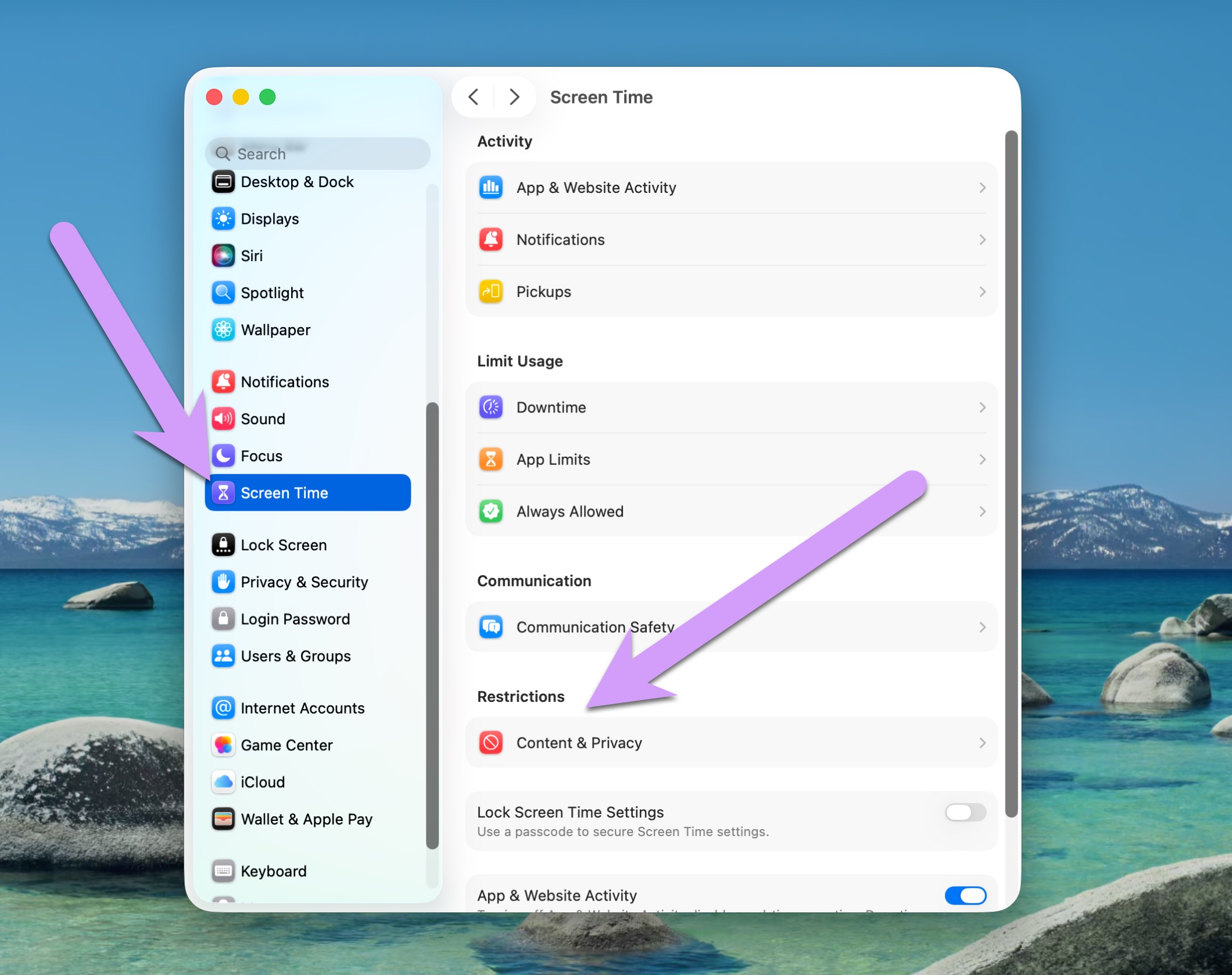
Step 1: Open System Settings → Screen Time
On your child's Mac, open System Settings, click on Screen Time in the sidebar, then click the section labeled Restrictions.
Step 2: Disable Content & Privacy
Toggle off completely the setting labeled Content & Privacy.

Step 3: Restart the Mac
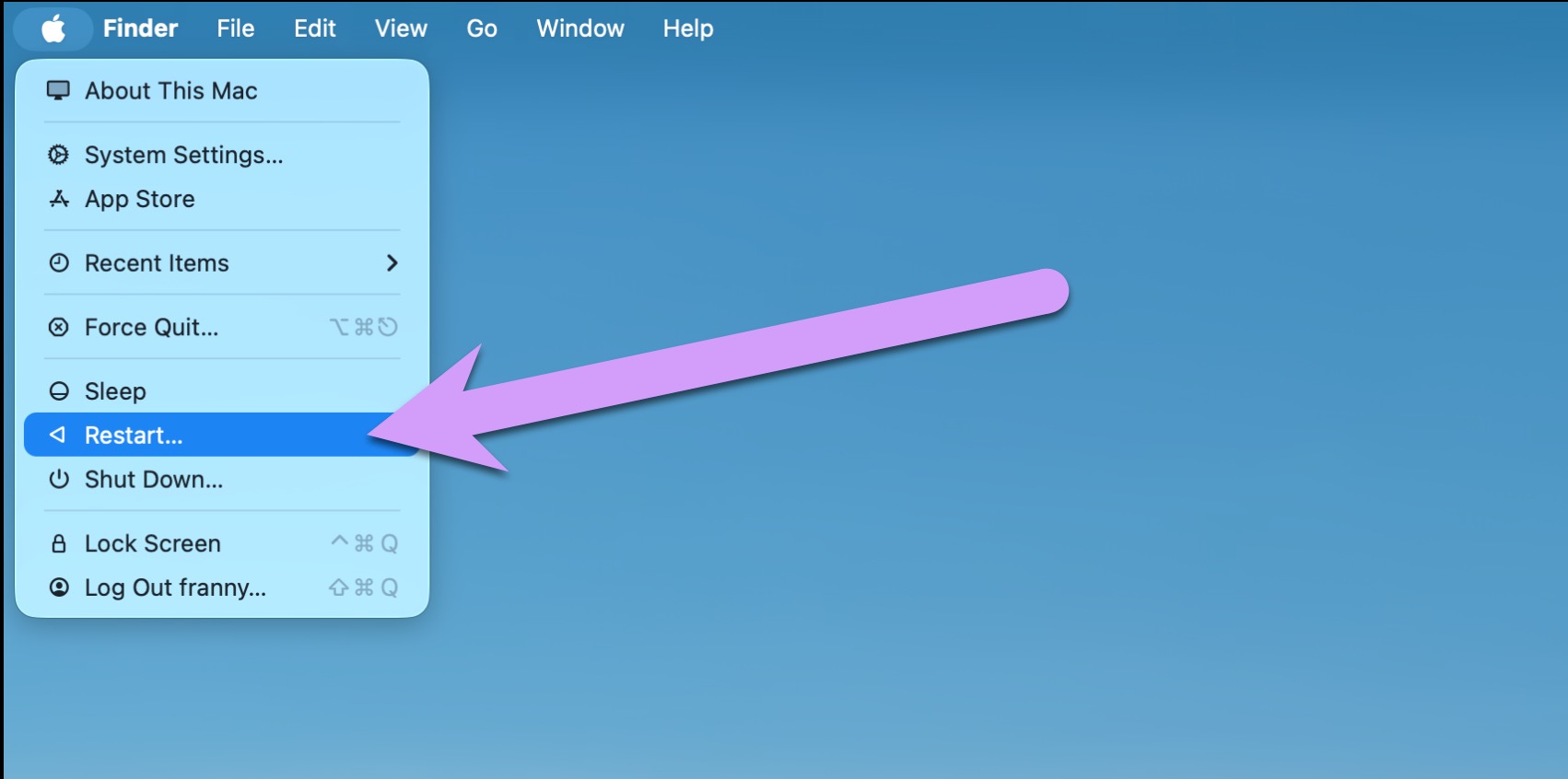
Finally, restart the computer. The change will not take effect until the Mac is fully restarted.
That's it. Gertrude's filter will now work correctly.
How to verify it's working
After making the change, try visiting a blocked website in Chrome or another non-Safari browser. If it's blocked, you're all set.
Questions?
Reach out here and we'll get back to you quickly.