
Supervise an iPhone or iPad Without Erasing It
Supervised Mode allows internet filtering for iPhones and iPads owned by adults, plus lots of other useful controls. With Gertrude, you can supervise your own device in 5 minutes without erasing it or using Apple Configurator.
- Platforms
- iOSiPadOS
 Gertrude Blocker
TL;DR Supervised Mode grants superpowers, like the ability for adults over 18 to filter out unwanted content on their iPhones and iPads. It used to require a factory reset and a Mac computer. Now Gertrude can do it in 5 minutes on a Mac or a Windows PC, with no hard reset required and no data loss.
What is Supervised Mode?
Supervised Mode is a special mode initially created by Apple to give schools and businesses much more control over their iPhones and iPads. But it can also be enabled by anyone, making it a super useful tool for anyone who wants to more tightly control or restrict their iPhone or iPad.
Until recently, supervising your own device required that you own a Mac computer, that you factory reset and erase the device, and that you use a complicated app called "Apple Configurator" designed for schools and businesses and not normal people. However, in January of 2026 Gertrude released a tool that lets you supervise your own device with any computer, Mac or PC (even one you borrow from a friend) and it does it in about 5 minutes without erasing your device or losing any data.
When supervision is necessary
Supervised Mode is generally useful for many things, but maybe the most important is that it unlocks the ability for adults to filter and block the internet across their entire device.
Apple allows apps like Gertrude to filter and restrict certain parts of the internet, within any app on the device, including Apple's own apps. This allows Gertrude to remove unwanted content that otherwise is completely uncontrollable. A good example is the #images animated GIF search embedded in Apple's texting app Messages. This feature allows access to hundreds of sexually explicit and inappropriate images. Many parents don't want their kids to have access to these images, and many adults don't want this temptation on their devices either.
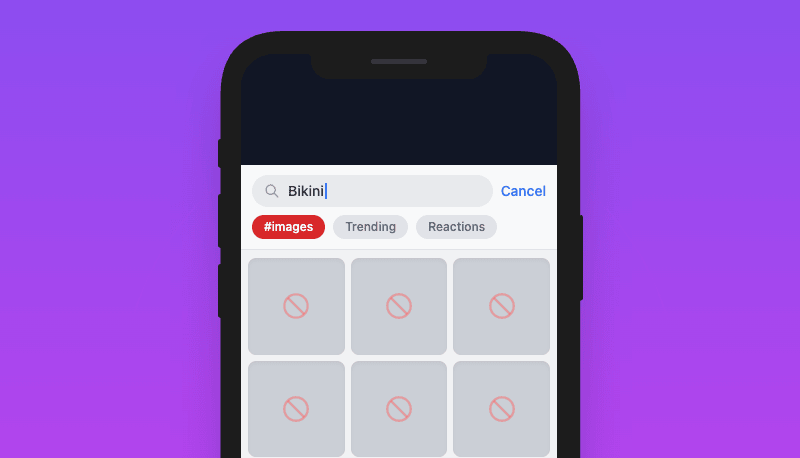
For children under 18 in an Apple Family, an app like Gertrude can request permission to filter the internet from the Family organizer. But Apple for some reason doesn't let normal devices owned by adults over 18 install internet filters. However, supervised devices can install these internet filters.
What else Supervised Mode unlocks
Here are just a few more things Supervised Mode unlocks:
- internet filtering for adults (see above)
- restrict which apps are allowed and can be installed for adults
- disable Safari, Apple Music, Radio, News, iTunes, Book store, and more
- enforce a VPN, making it impossible to remove
- prevent removal of restriction profiles and other workarounds
How to supervise the device
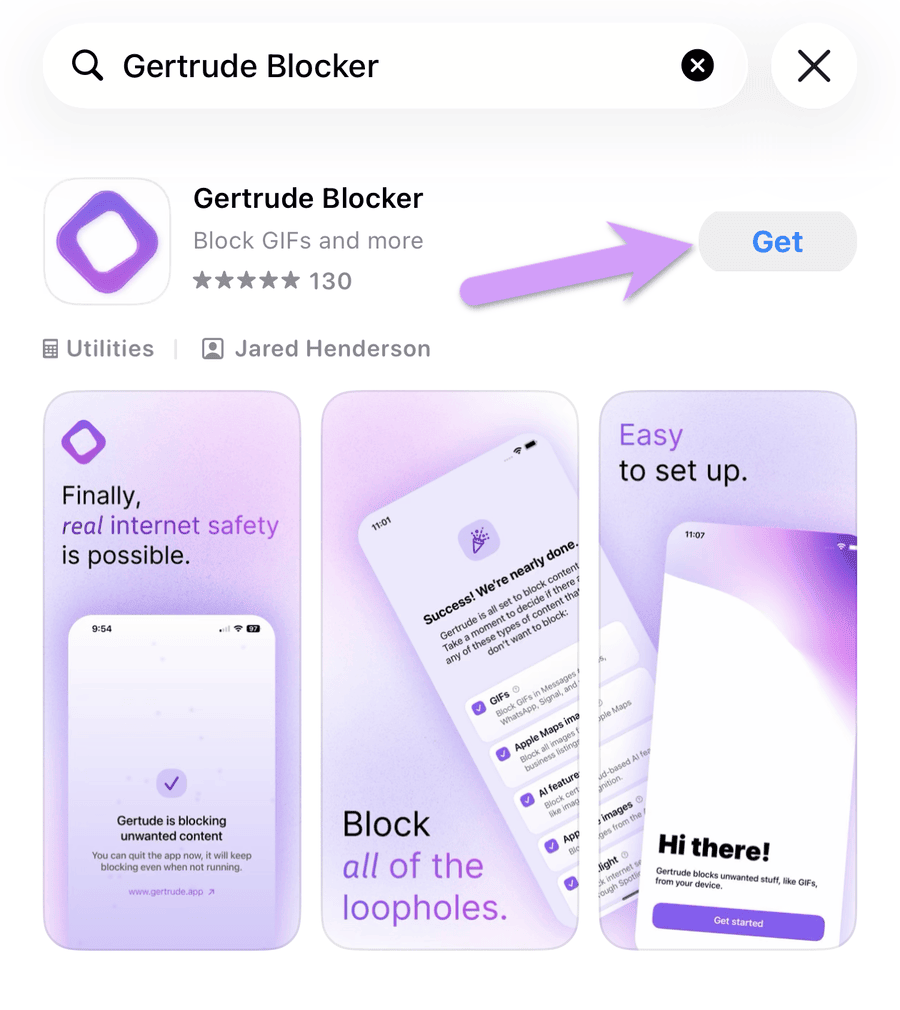
- Download, install and launch the Gertrude Blocker app on the device you want to protect
- Follow the on-screen instructions
Show me step-by-step instructions with screenshots
Step 1. Download and install Gertrude Blocker
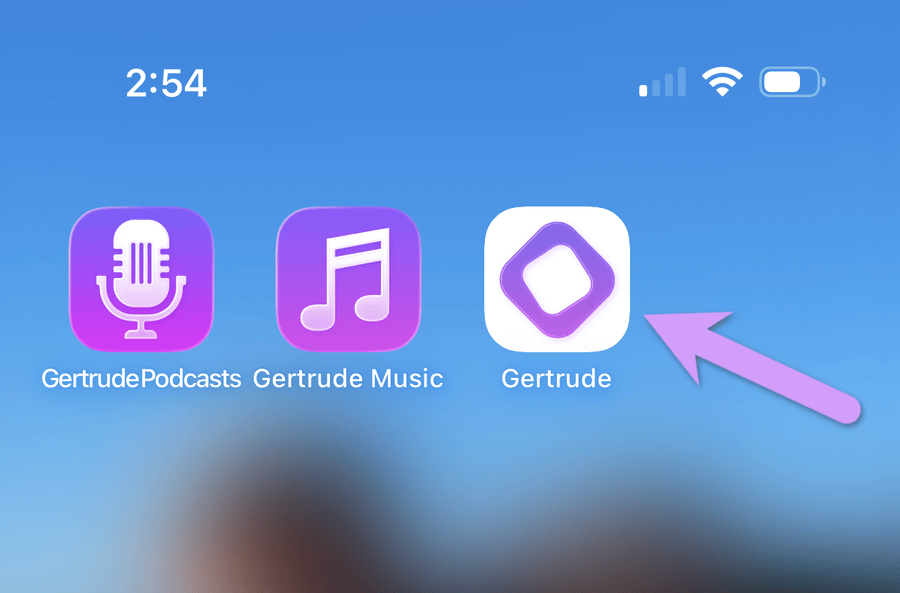
On the device you want to supervise, open the App Store and search for "Gertrude Blocker". Install the app and launch it.
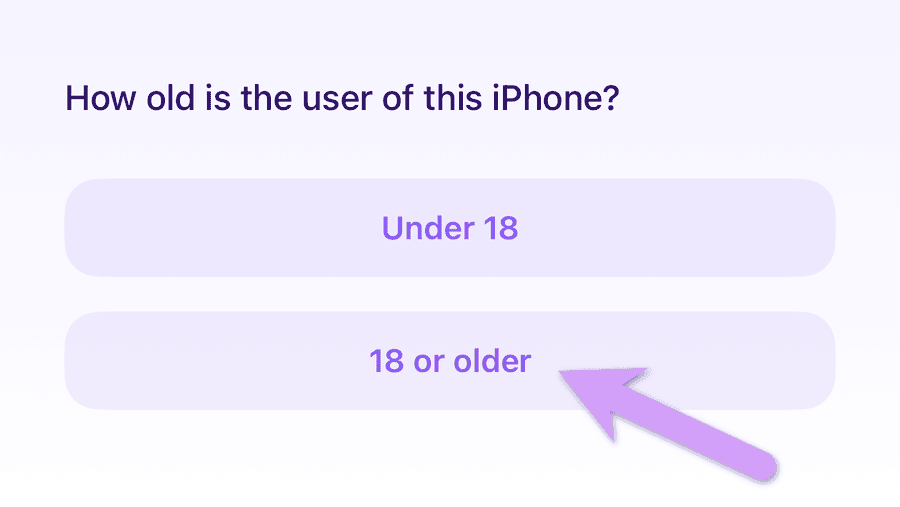
Step 2. Choose the 18 or older path
After launching the Gertrude app, work through the welcome steps, choosing the "Over 18" path.
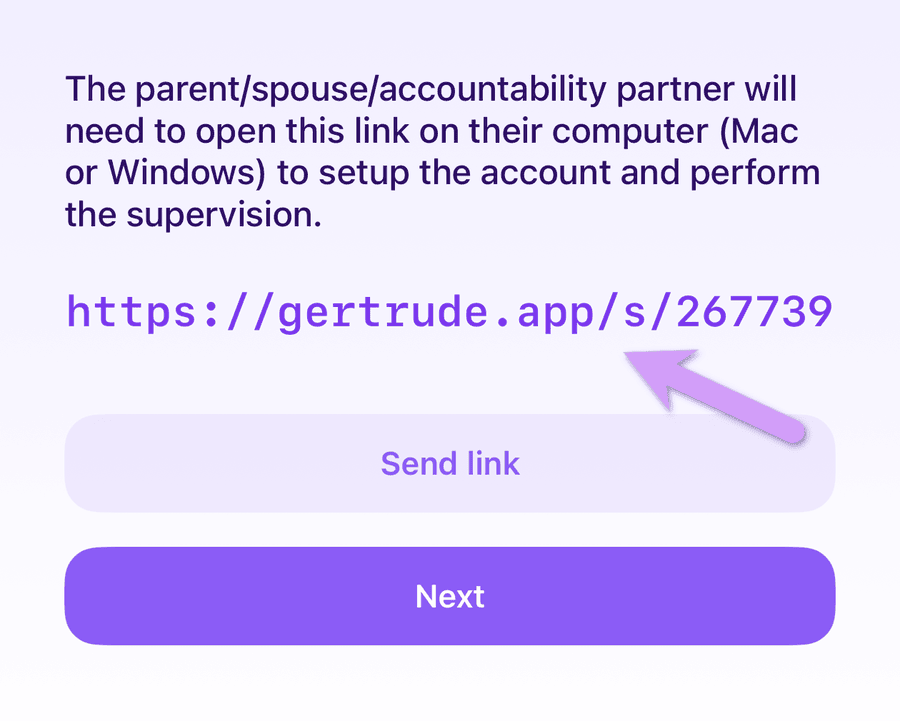
Step 3. Get the claim code short link
A few screens later you'll see a claim code link, like this, which should be opened on the accountability partner or parent's computer.
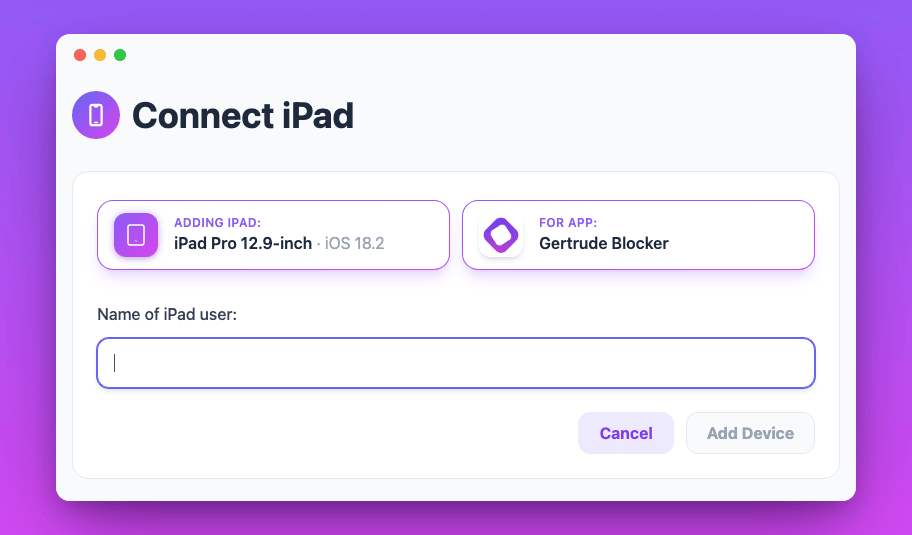
Step 4. Connect the device to a Gertrude account
Using the link from the previous step, sign in to your Gertrude account, or create one for the first time. You'll be prompted to provide the name of the owner of the device. At this point, you'll need to also start a Light subscription, just $10 per year (83 cents per month).
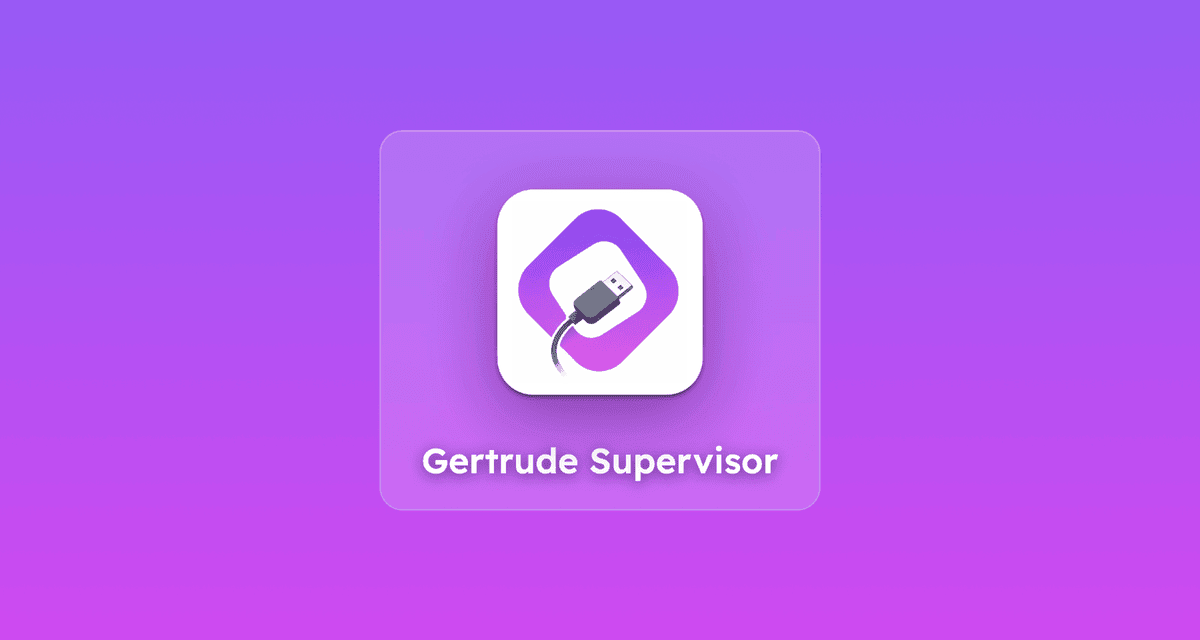
Step 5. Download and launch the supervision helper app
Next, the Gertrude account website will prompt you to download our Supervision helper app. For this step you need a computer, but it can be a Mac or a Windows computer, and you only need it once, for a few minutes. It's perfectly fine to borrow a friend's computer! You'll also need a USB cable to connect the computer to the iPhone or iPad.
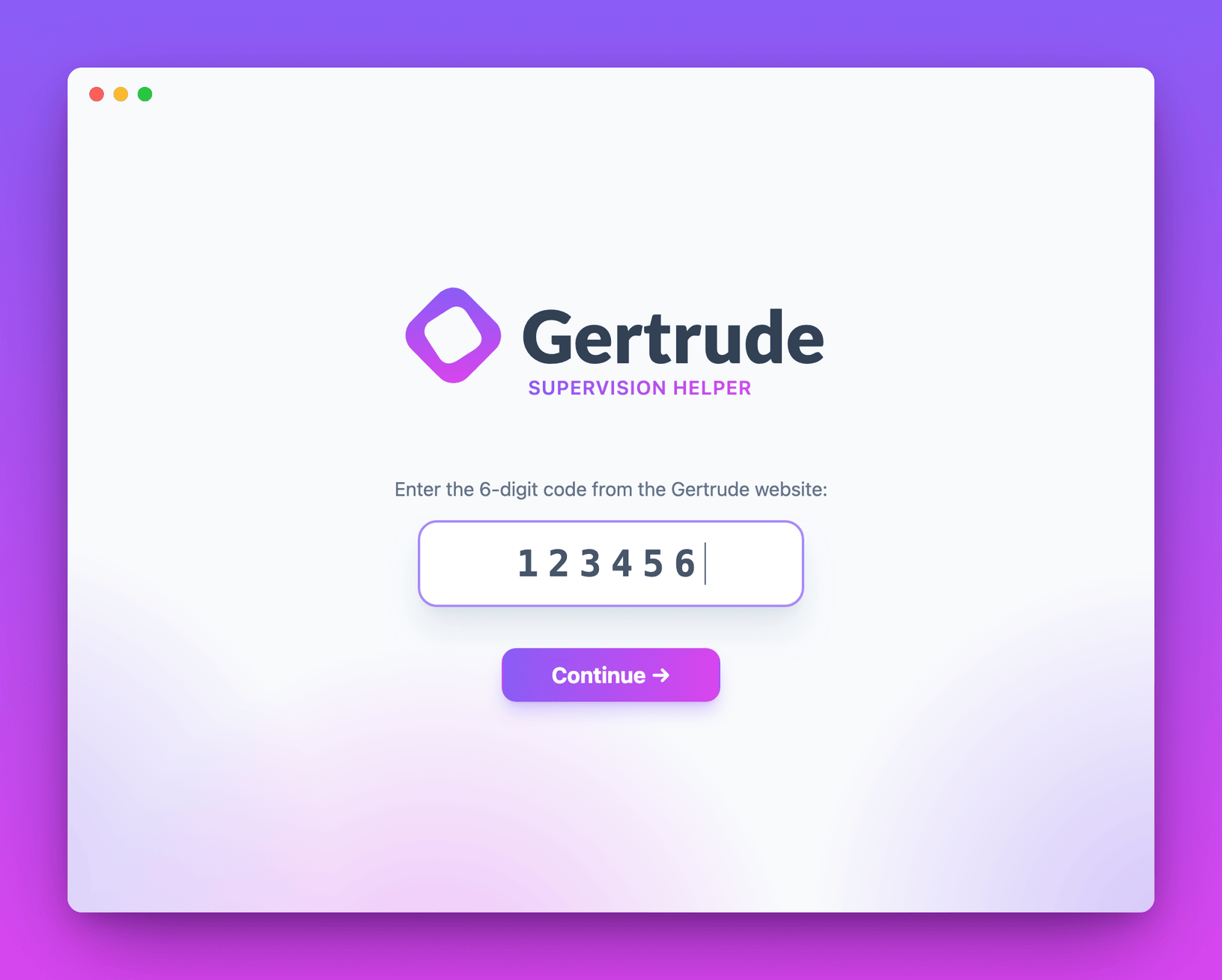
Step 6. Enter your connection code and follow the steps
The app will ask for the 6-digit code shown on the Gertrude website. Enter it, then follow the steps the app walks you through. It covers connecting the USB cable and turning off Find My. Your phone will reboot partway through, which is expected, so don't unplug it.
The Supervision helper app will walk you through about 10 individual steps, and the whole process takes only around 5 minutes.
Step 7. Relaunch Gertrude and download the profile
When the supervision is complete, you'll be instructed to relaunch the Gertrude app, where there's just one more step: downloading and installing a profile.
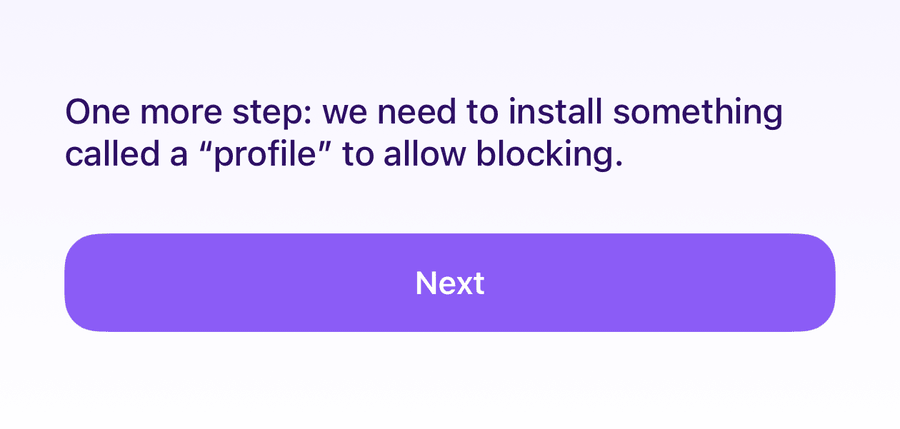
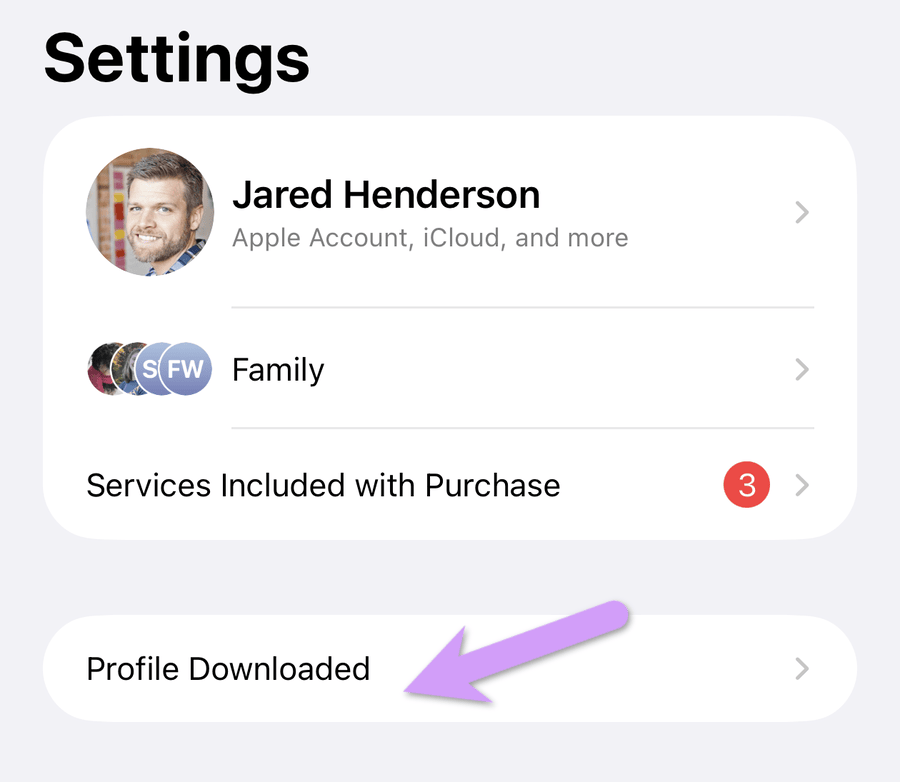
Once you've downloaded the profile from within Gertrude, you'll need to head over to the main Settings app to actually install the profile.
Frequently asked questions
Do I lose my data when enabling Supervised Mode?
No. Gertrude's supervision tool supervises the device in place over USB, so there's no hard reset and no data loss. Your apps, photos, messages, and settings are all exactly where you left them. Apple Configurator, the older method, does erase the device, which is the main reason we built our own tool.
Will I need to reinstall my apps?
No. Because nothing is erased, your apps stay installed and signed in. There's no backup to restore and no setting the device up again from scratch.
Do I need a Mac?
No. The Gertrude supervision tool runs on Mac and Windows. That's the biggest practical difference from Apple Configurator, which is Mac-only. On a Windows PC you'll need iTunes installed so Windows can talk to the device. You can also borrow a computer, since it only takes a few minutes and isn't needed again afterward.
What's the difference between Screen Time and Supervised Mode?
Screen Time is Apple's built-in parental controls, and works on any iPhone or iPad. Supervised Mode is a deeper, device-level setting originally built for schools and businesses, and it unlocks restrictions Screen Time can't reach, including letting an adult install an internet content filter on their own device. They're not alternatives, and most people who supervise a device use both together.
Can I supervise an iPhone I already own and use?
Yes, and that's exactly what this is for. Supervision used to be something you could only turn on when a device was first set up, which is why Apple's own documentation says an administrator has to completely erase the device. Gertrude supervises a phone you're already using, with everything on it left intact.
Why do I have to turn off Find My iPhone?
Find My enables Activation Lock, which blocks the kind of device-level change that supervision makes. Turning it off temporarily lets supervision go through, and you can turn Find My back on as soon as it's finished.
How do I remove supervision later?
Supervision is a device-level setting, so it isn't undone by deleting the Gertrude app or cancelling your subscription. Contact Gertrude support and we'll send you an unsupervision tool once we've double-checked your identity.
What about Apple Configurator?
Apple Configurator is Apple's own tool for putting a device into Supervised Mode, and before our tool existed it was the only real option. It still works, but it comes with two significant costs: it runs on a Mac only, requires frequent access to the Mac for ongoing management, and it erases the device completely. You'd need a current backup, and app data in particular often doesn't survive the round trip.
Avoiding both of those is exactly why we built our own supervision tool for iPhone and iPad. But if you'd rather use Apple's, or you're setting up a device you were going to wipe anyway, we've kept step-by-step Apple Configurator instructions.
Need help?
If you have any questions at all, we'd love to help. Drop us a line right here and we'll get right back to you!