
How to Send an Unlock Request on a Mac
Select blocked website or app requests in Gertrude for Mac and send them to a parent for review.
- Platform
- macOS
 Gertrude for Mac
Children can use Gertrude’s Blocked Requests window to ask a parent to allow a website or app. The parent can review the requested addresses from the Gertrude parent website.
Step 1: Open Blocked Requests
Click the Gertrude icon in the Mac menu bar, then click Blocked requests.
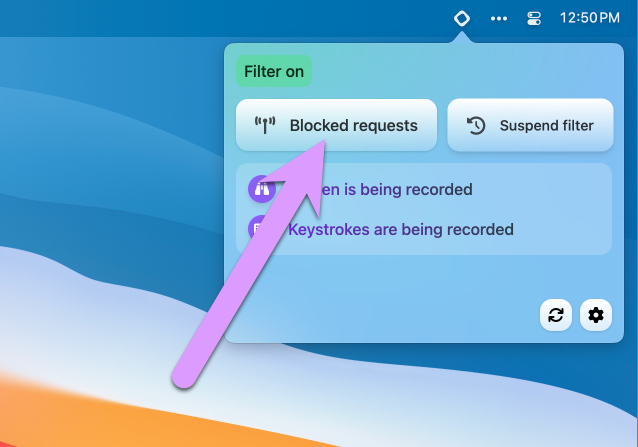
Keep the window open while you reproduce the problem. It shows only requests blocked after the window was opened.
Step 2: Reproduce the problem
Return to the website or app and repeat the action that Gertrude blocked. If it’s a website, reload the page.
If there are too many requests to identify the right ones, follow the steps to filter and isolate blocked requests.
Step 3: Select the requests
Select the circle beside each address you think the website or app needs. Add a short explanation telling your parent what you’re trying to use and why.
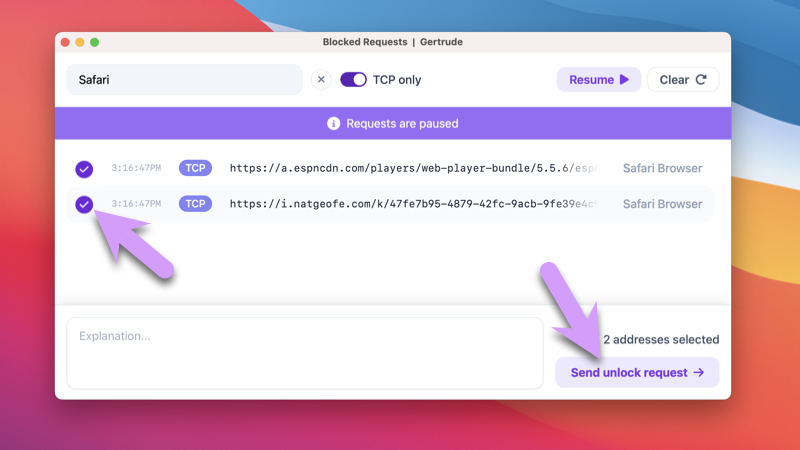
Step 4: Send the request
Click Send unlock request. Your parent can accept or deny the request from the Gertrude parent website.
After the request is approved, try the website or app again. Some services need more than one group of addresses, so you may need to repeat these steps.
For more background, read the complete guide to unblocking websites and apps on a Mac.