
Five Things You Forgot When Locking Down your Kid's iPhone
The five things you probably forgot when locking down your kid's iPhone... and the bizarrely unintuitive steps it takes to fix them.
- Platforms
- iOSiPadOS
 Gertrude Blocker
I consider myself pretty tech-savvy—I've been a software developer for 15 years, and even have apps in the App store. So when I locked down my oldest son's first iPhone, I was fairly confident I had covered all my bases. But boy, was I wrong. Grab your child's phone right this minute and check if you missed any of these too.
1. #images iMessage App
Apple's built-in Messages app comes with a growing number of app-integrations (called iMessage apps) that allow for sending non-text items in text messages.

If your child clicks on the #images (Hashtag Images) app (shown above), they are able to search through a huge inventory of animated gifs. The image below shows a harmless search query, but there are loads of sexually suggestive and otherwise inappropriate images your child shouldn't be able to browse.

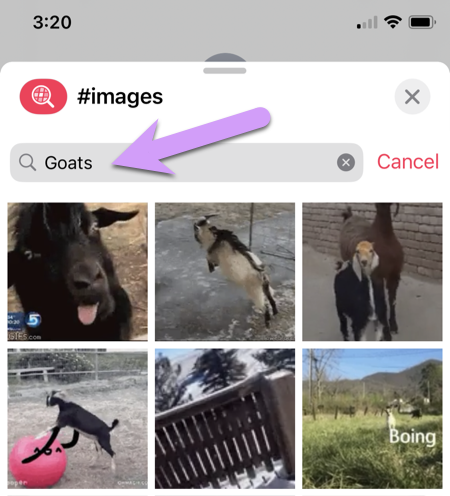
Show me how to fix it
Step 1. Scroll to the far right and tap on the more (•••) icon:
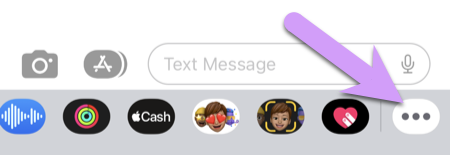
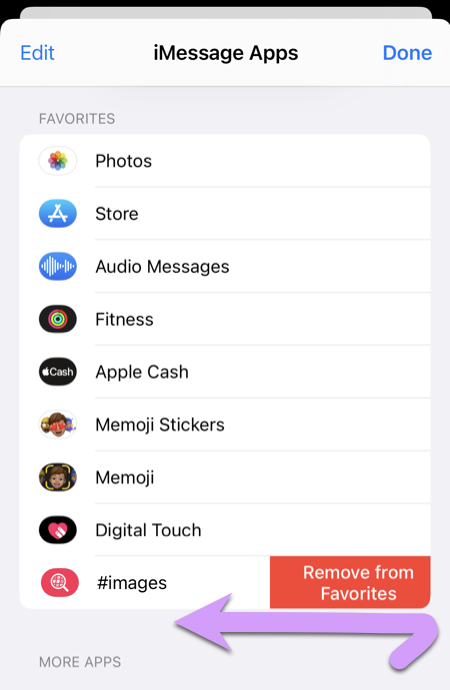
Step 2. Next, swipe left to remove the app from Favorites.
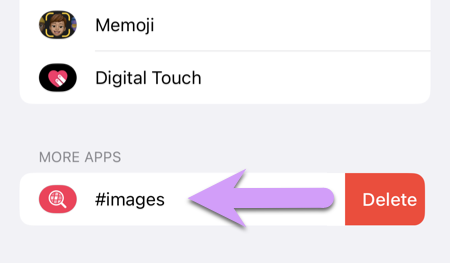
Step 3. Then the app will appear in the section labeled MORE APPS. Swipe left again in this section to fully delete the app:
Step 4. Repeat for any other iMessage Apps that may already be installed. The #images app is the most dangerous app, but we also recommend deleting the rest of them, with the exception of the Photos app.
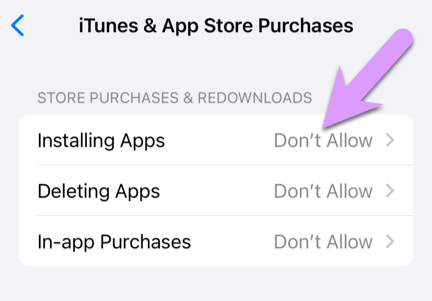
Step 5. Ensure that your child doesn't have the ability to re-install this (or any other) app by going to "Settings > Screen Time > Content & Privacy Restrictions > iTunes & App Store Purchases" and choose Don't Allow for "Installing Apps":
2. Explicit Images in Maps Apps
The built-in Apple Maps app and Google Maps are (surprisingly) not safe for kids, and should be deleted. They are unsafe because both apps will show any images that may have been uploaded by business owners or patrons. For instance, many strip clubs post nude photos which can be accessed through these apps. No Screen Time setting can prevent these images from being viewed, the only way to secure your child's phone is to delete the apps. (In the "how to fix" section below we recommend an alternate map/navigation app.)

Show me how to fix it
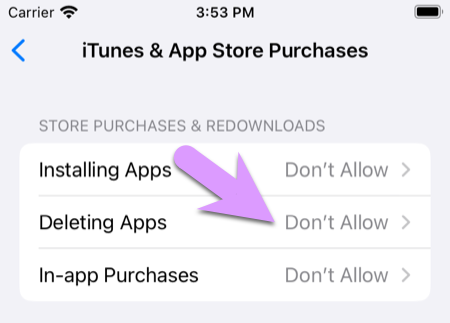
Step 1. Temporarily allow deleting apps in Screen Time by going to "Settings > Screen Time > Content & Privacy Restrictions > iTunes & App Store Purchases", as shown below:
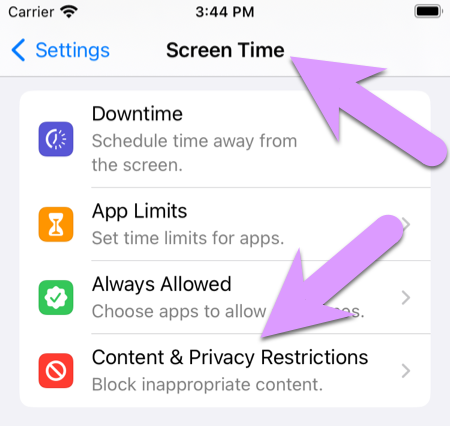
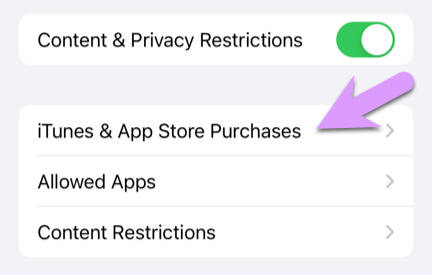
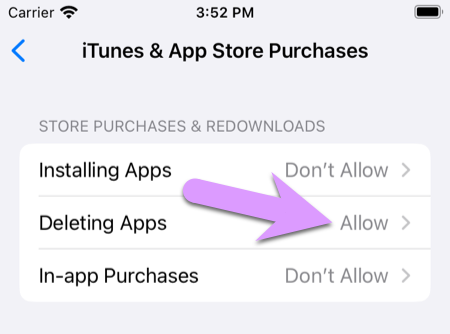
You may find that you are already allowing Deleting apps. If so, just leave the setting as is, but we do recommend you revoke that privilege after deleting the map apps.
Step 2. Power off and restart the phone.
Once you've allowed deleting apps, you won't actually be able to delete Apple Maps until you fully power off the phone and restart. To power off the phone, hold down the "side" button and the "volume down" button at the same time.
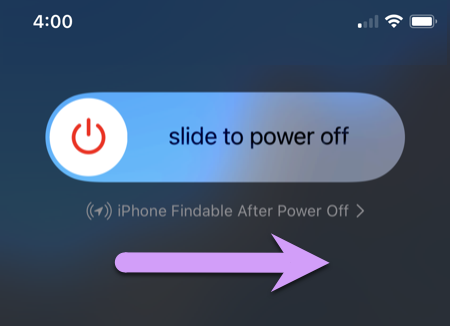
After the phone has powered off, turn it on again by holding the right side button until the Apple logo appears.
Step 3. Delete the app/s.
Once you've allowed deleting apps and restarted the phone after a full power-off, you can now click and hold the icon of the Apple maps (and/or the Google Maps app) and choose to delete it.
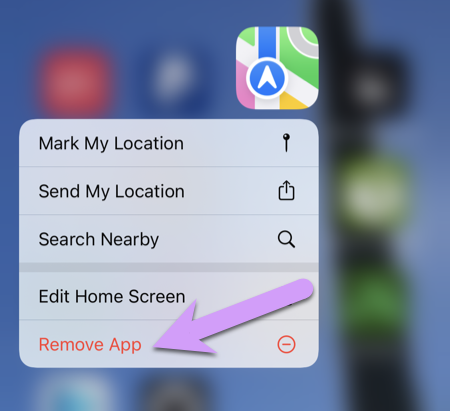
Step 4. Now that the app is deleted, forbid again the ability to delete apps by going back to "Settings > Screen Time > Content & Privacy Restrictions > iTunes & App Store Purchases":
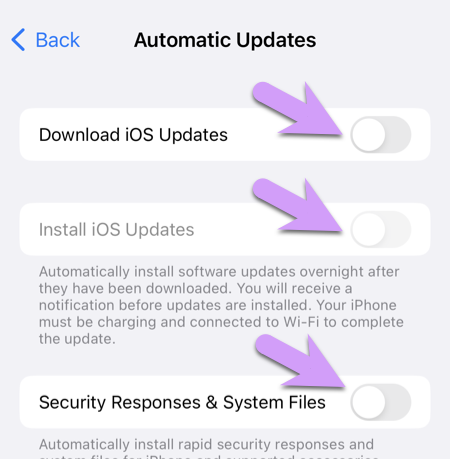
Step 5. Disable automatic software updates.
Every time iOS updates (which can happen automatically, without any intervention, during the night when the phone is charging), the Apple Maps app may come back. We aren't 100% sure how often it does, it may only be for the large, yearly major iOS versions that usually happen in the fall, or it may be more often—but it definitely happens.
Go to the Settings app on your child's phone, then navigate to "General > Software Update > Automatic Update", and disable all three options shown below:
3. Internet Content in Searches
To test if your child's phone is vulnerable to this commonly missed item, pull down from the middle of the home screen to access the iPhone's built-in search prompt.
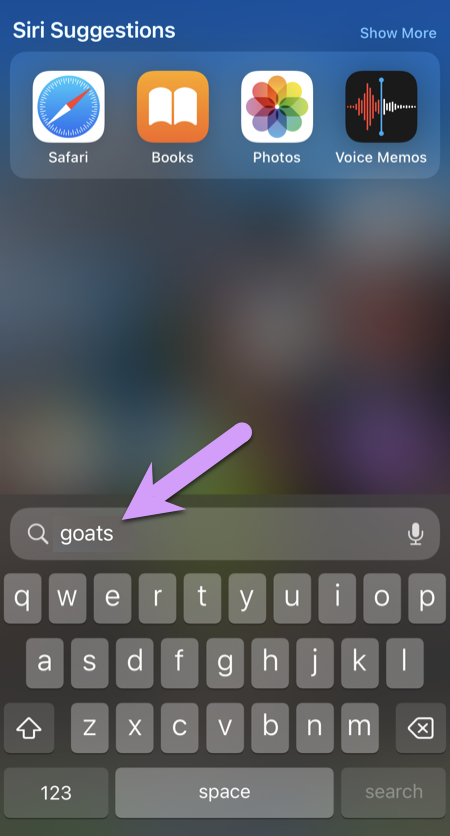
After pressing the search button, Siri is activated behind the scenes to search the internet and return results, including images. Again, imagine a less innocent search than goats:

Show me how to fix it
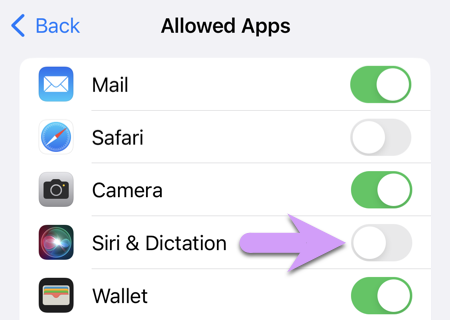
Step 1. Temporarily allow the use of Siri by going to: Settings > Screen Time > Content & Privacy Restrictions > Allowed Apps.
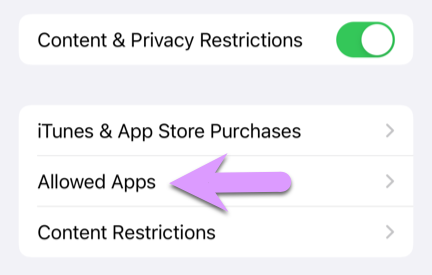
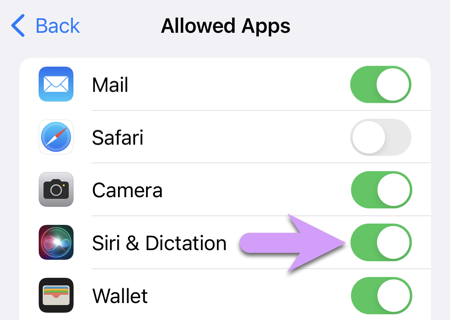
Then, temporarily allow Siri & Dictation (you'll disable it again once we get the Spotlight searching features disabled).
Step 2. Go back to the main settings screen, where you should now be able to see an option for Siri & Search
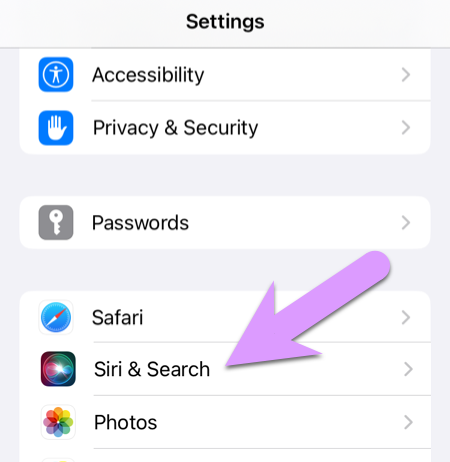
Click to disable "Show in Spotlight":
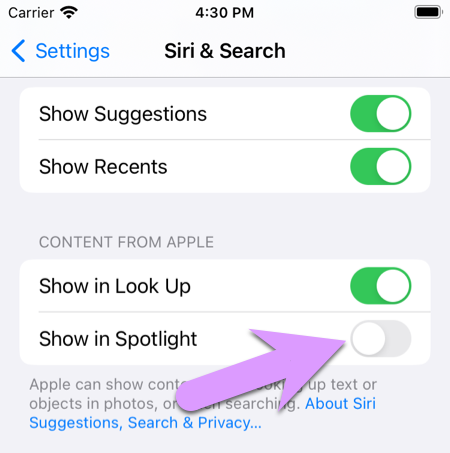
Step 3. Finally, now that Siri can no longer provide results to Spotlight (the name of the built-in iOS search feature), you need to reverse step 1 by disabling Siri & Dictation. Go to Settings > Screen Time > Content & Privacy Restrictions, and disallow Siri & Dictation.
4. Web Searching from iBooks, Notes, Kindle, and Other Apps.
Most apps that deal with text (like ebook readers, Bible apps, Notes, and many more) allow the user to highlight a search term and "Look Up".

Which brings up this:

Show me how to fix it
Step 1. Temporarily allow the use of Siri by going to: Settings > Screen Time > Content & Privacy Restrictions > Allowed Apps. (We need Siri enabled to get to the settings shown below.)
Tap to temporarily enable Siri & Dictation.
Step 2. Go back to the main settings screen, where you should now be able to see an option for Siri & Search
Click to disable "Show in Look Up":
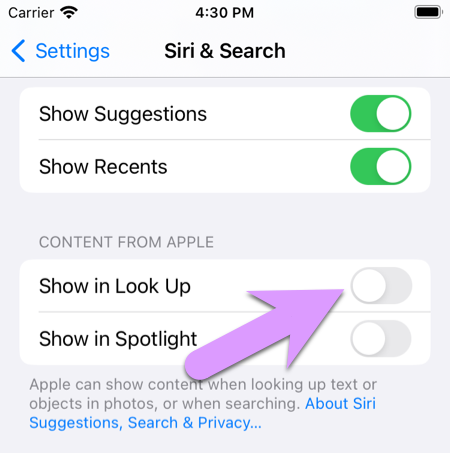
Step 3. Finally, now that Siri can no longer provide results to "Look Up", you need to reverse step 1 by disabling Siri & Dictation. Go to Settings > Screen Time > Content & Privacy Restrictions, and disallow Siri & Dictation.
5. Siri Internet Access
A frequent mistake parents make is to leave Siri fully or partially enabled. While Siri can provide help for many harmless tasks, it can also bypass other restrictions to access and display almost any content on the internet. To test if your child's device is vulnerable, ask Siri to show you pictures of something.
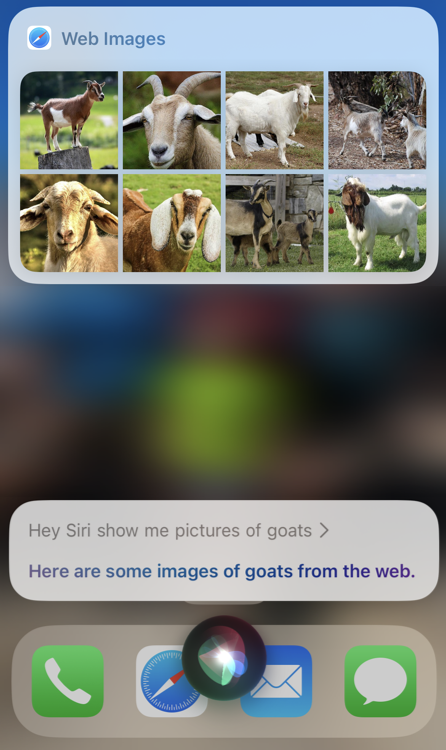
Unfortunately, simply disabling Siri from the Screen Time settings is not sufficient to fix this. Follow the steps below for instructions.
Show me how to fix it
Step 1. Before we disable Siri, we need to adjust some settings. Go to Settings > Siri & Search:
Then disable all of the options shown below. Doing so prevents Siri from providing internet images and content when searching (Spotlight) or looking up definitions (Look Up).
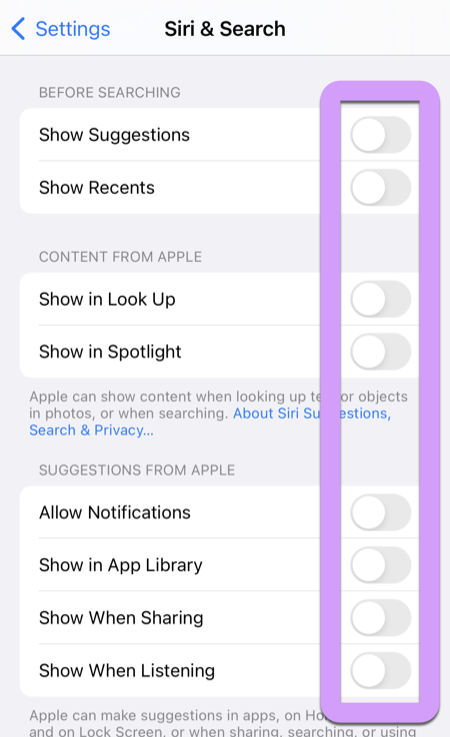
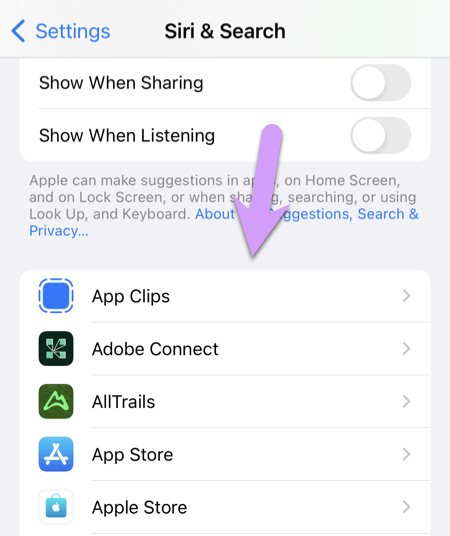
Step 2. Disable app/Siri integrations. On the same settings screen from Step 1, scroll down a bit further to find individual app settings for Siri, shown below:
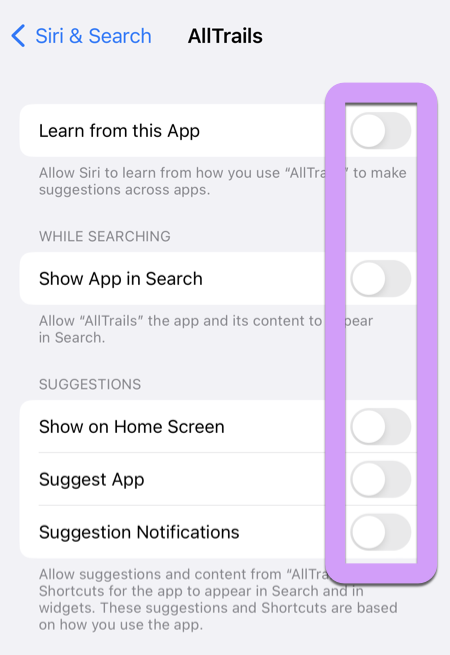
Tap on each app one at a time, and completely disable Siri from accessing/integrating with the app:
Step 3. Disable Siri in Screen Time.
Go to the main Settings app, and then navigate to "Screen Time > Content & Privacy Restrictions"
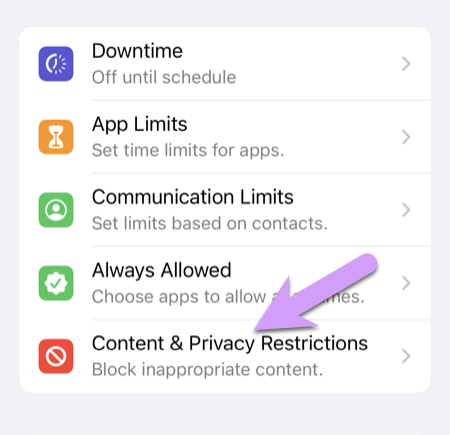
Then to Allowed Apps:
Then tap to disable Siri & Dictation:
Bonus: Protecting Household Devices
If you checked and fixed all of the loopholes we've shown so far, and have locked down your child's iPhone using Screen Time, then you're doing great. But there's one more thing most parents forget: most households have many internet-connected devices, ALL of which must be protected with passwords. Take a minute to do a thorough review of all the phones, computers, and devices in your house, including:
- your phone and your spouse's
- all computers, including yours
- phones, iPads, or tablets used by younger/older siblings
- old devices lying around in closets and cupboards
All of these devices must be secured with passwords or have unsafe apps/priveleges removed. If this seems extreme, I assure you it's not. A couple I know found out too late that their 13 year old son was taking a laptop from their bedroom at night while they slept in order to fuel a growing pornography addiction.
The grown-ups' phones are the awkward case, because Apple won't allow an internet filter on an adult's device unless that device is supervised. You can supervise an iPhone or iPad without erasing it in about five minutes, or do it the traditional way with Apple Configurator.
Also, if your devices are protected with passwords, you need to change those passwords regularly. Most people re-use the same passwords for many accounts and devices. Kids are smart enough to figure this out, and yours probably already know your favorite password.